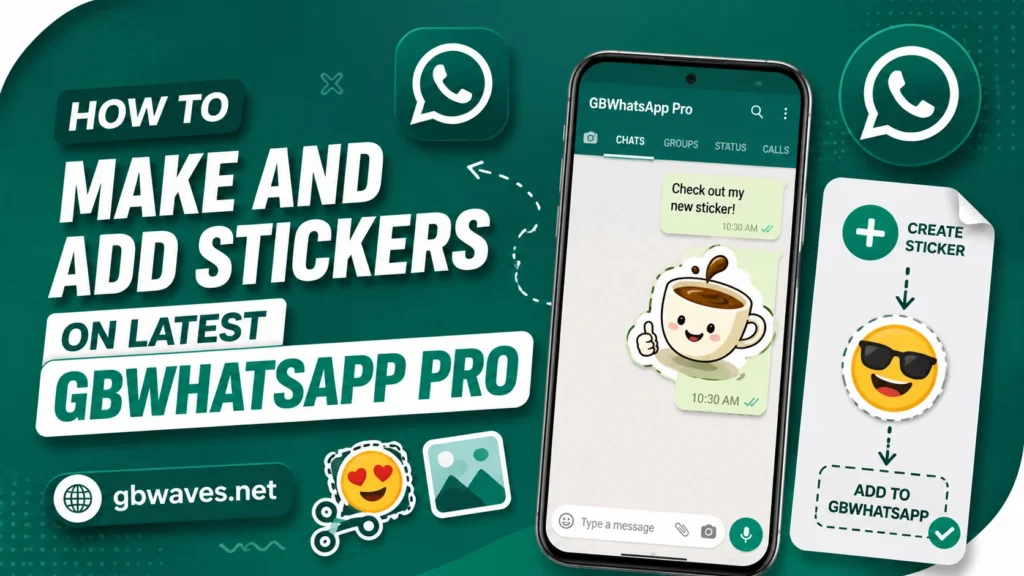
How to Make and Add Stickers on Latest GBWhatsApp Pro
Stickers have become one of the most expressive parts of any messaging app, and GBWhatsApp Pro takes them further than the official client. The app includes a built-in sticker maker, supports custom sticker packs, and lets you turn almost any image on your phone into a sticker in seconds. In 2026, this has become one of the most-used features of the mod, especially in group chats where a well-timed sticker can replace a paragraph of text.
This guide explains how to make your own stickers, how to import sticker packs made by other users, and how to organize your collection. We will also cover tips for getting clean cutouts, the best image sizes to use, and how to share your creations with friends. By the end, you will have a personal sticker library that fits your style and your conversations.
Why Stickers Matter in GBWhatsApp Pro
Stickers add personality to conversations. They can be funny, emotional, or just plain weird, and they cross language barriers more easily than text. The official WhatsApp has a limited sticker store, and while you can import custom packs, the process used to be clunky. GBWhatsApp Pro streamlines the whole experience by bundling the tools you need inside the app.
For content creators, stickers are also a form of expression. A small art project, a meme page, or a brand can release its own sticker pack and share it with an audience. Because the tools are built into GBWhatsApp Pro, the barrier to entry is much lower than it is on other platforms.
For everyday users, custom stickers are a way to react to specific situations. A photo of your pet with a funny caption, a screenshot of an inside joke, or a doodle of a friend can all become reusable stickers. Once you start making them, it is hard to go back to plain emoji.
Stickers also help reduce the amount of typing in fast-moving chats. A single well-chosen sticker can replace a long sentence, and the receiver gets the message instantly. In busy group conversations, this is faster than typing and more expressive than a thumbs-up emoji. Many users in 2026 have built personal libraries of dozens of packs to cover common moods: celebration, sarcasm, agreement, disbelief, and so on. With GBWhatsApp Pro, building that library is a creative side project that pays off in everyday conversations.
Accessing the Sticker Maker
The sticker maker in GBWhatsApp Pro lives inside the app, just like the theme store. Open a chat, tap the emoji icon to bring up the reaction panel, then look for the sticker icon. On newer versions, the entry is labeled Stickers, and tapping it opens a small tray with your existing packs and a Create button.
Tap Create, and the app will open the sticker editor. You will see options to choose an image from your gallery, take a new photo with the camera, or pick from a small selection of built-in shapes. Choose the source you want, and the editor will load the image on a transparent canvas with cutout tools on the side.
If you have used any photo editing app before, the tools will feel familiar. You can drag to select an area, erase mistakes, and undo changes with a single tap. The app also has an Auto Cut feature, which uses on-device processing to detect the subject of the photo and remove the background in one tap. It is not perfect, but it works well for portraits and product shots.
Creating Your First Sticker
Let us walk through a simple example. Suppose you want to turn a photo of your dog into a sticker. Open the sticker maker, choose the photo from your gallery, and tap Auto Cut. The app will try to remove the background, leaving your dog on a transparent layer. If the result is rough around the edges, use the manual brush to clean it up.
Once the cutout looks good, you can add text. There is a small text tool in the editor that lets you type a caption, choose a font, and place it at the top or bottom of the sticker. Keep the text short, since stickers work best with one or two words. A big “TREAT?” above a dog photo reads clearly even at small sizes.
When you are happy with the result, tap Save. The sticker will be added to your personal pack, which is automatically named after your GBWhatsApp Pro profile. You can also rename the pack if you want to keep multiple custom packs for different moods or themes.
Importing Sticker Packs from Other Sources
Beyond your own creations, GBWhatsApp Pro supports importing sticker packs made by other people. These packs often come as small .apk files or .json bundles shared on Telegram, community forums, and download sites. Trusted sources like gbwaves.net regularly feature curated packs that have been scanned for safety.
To import a pack, save the file to your phone, then open GBWhatsApp Pro. Go to the Stickers section and look for an Import or Add Pack option, usually hidden in a small menu. Choose the file, and the app will install the pack, making its stickers available across all your chats.
If a pack is in the .apk format, you may be prompted to install it as if it were an app. This is normal. The pack runs in a sandboxed environment and does not require special permissions. Once installed, you can delete the source APK if you want, since the pack will remain available inside GBWhatsApp Pro.
You can also subscribe to official sticker artist channels within the app. GBWhatsApp Pro integrates a directory of curated packs that you can browse by language, mood, and popularity. Subscribing to a pack from this directory is as simple as tapping a button, and the pack will be available in your tray within seconds. This is a good option if you want a steady supply of fresh content without hunting for packs across the web.
Organizing and Managing Your Sticker Collection
Once you start collecting stickers, the panel can get crowded. GBWhatsApp Pro lets you reorder packs, hide the ones you do not use, and group packs by category. To access these options, open the Stickers tray and tap the small gear icon or three-dot menu at the top.
You can also favorite specific stickers by long-pressing them in a chat and choosing Add to Favorites. Favorited stickers appear in a separate tab, which is handy if there are a few go-to reactions you use often. This small habit saves a lot of time scrolling through packs.
If a pack starts behaving oddly or a sticker fails to load, remove it and re-import it. Corrupted files are the most common cause of broken stickers, and a clean install usually fixes the issue. Keeping your collection small also helps GBWhatsApp Pro run smoothly on older phones.
Tips for Better Stickers
| Tip | Why It Helps |
|---|---|
| Use high-contrast images | Auto Cut works better with clear subjects |
| Stick to 512×512 pixels | Standard size, no resizing artifacts |
| Keep text short | Easier to read at small sizes |
| Use bold fonts | Improves legibility on dark backgrounds |
| Avoid busy backgrounds | Cleaner cutouts, smaller file sizes |
| Test on a friend first | Catches issues before wider sharing |
FAQs About Stickers on GBWhatsApp Pro (2026)
Open any chat, tap the emoji icon, then tap the sticker icon. The Create button opens the built-in sticker maker.
Yes, official WhatsApp sticker packs work in GBWhatsApp Pro without conversion. Just install them through the official store and they will appear in the sticker tray.
Packs from trusted sources like gbwaves.net are generally safe. Avoid random .apk files shared in unknown Telegram groups, since they can sometimes contain unwanted code.
The practical limit is around 30 stickers per pack, which keeps the tray responsive. You can have multiple packs installed at the same time.
Yes, GBWhatsApp Pro lets you export a custom pack as a small file that you can send to friends. They can then import it on their device and use the same stickers in their chats.
Conclusion
Stickers are one of the most fun parts of GBWhatsApp Pro, and the 2026 build makes them easier than ever to create, import, and share. The built-in sticker maker handles most of the work for you, and the import tools support the most common pack formats. Once you get into the habit of turning memorable moments into reusable stickers, your chats will have a personal flavor that plain emoji cannot match.
Start with a few personal stickers made from your own photos, then explore community packs for inspiration. Before long, you will have a curated collection that fits your sense of humor and your daily conversations. For more tips and curated sticker packs, the resources on gbwaves.net are worth bookmarking.