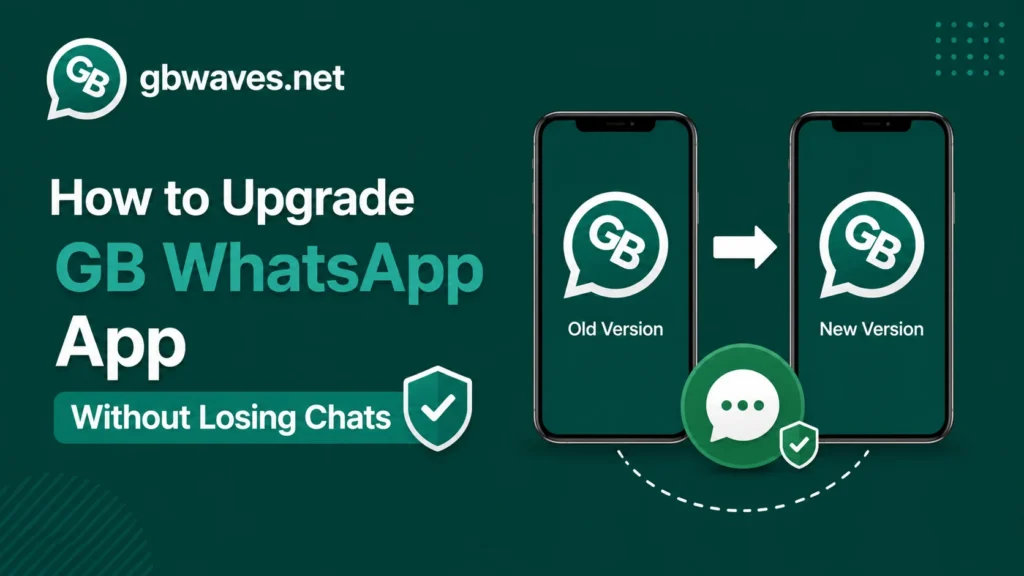
How to Upgrade GB WhatsApp App Without Losing Chats
Upgrading GB WhatsApp without losing your chats is the single most important skill for any regular user. Unlike the official WhatsApp, GB WhatsApp 2026 does not update itself through the Play Store. Every new version has to be downloaded and installed manually, which introduces a small risk of data loss if you skip a step. The good news is that, with a clean backup and a careful install, you can switch versions as often as you like and keep every message, photo, and voice note exactly where you left it.
This guide walks you through the full upgrade process in 2026, from taking a local backup to restoring your chats on the new build. You will also learn how to set up Google Drive as a safety net, and what to do if something goes wrong. By the end, upgrading should feel like a routine, low-stress task rather than a gamble.
Step One: Take a Local Backup
The first thing you should do before any upgrade is a local backup. This is a copy of your chats stored on your phone’s internal storage, separate from any cloud copy. Open GB WhatsApp, tap the three-dot menu, and go to Settings, then Chats. Inside the Chats section, you will find an entry labeled Backup or Chat Backup. Tap it, then choose Back Up Now.
The backup includes your text messages, media, and voice notes. Depending on how large your chat history is, it can take anywhere from a few seconds to several minutes. While it runs, do not close the app or lock your screen, since the process needs to stay active until it finishes. Once it completes, the app will show the timestamp of the most recent backup, which is your proof that everything saved correctly.
Local backups are stored in a hidden folder on your phone, usually under Android, media, com.gbwhatsapp, or a similar path. You do not need to find this folder manually; GB WhatsApp will read from it automatically during a restore. But if you want extra safety, you can copy the folder to a computer or a cloud service of your choice.
Step Two: Enable Google Drive Backup as a Safety Net
A local backup is usually enough, but pairing it with a Google Drive copy gives you a stronger safety net. GB WhatsApp supports Google Drive backups the same way the official app does, and you can configure the frequency under the same Backup menu. Choose Daily if you chat a lot, or Weekly if you only use the app occasionally.
To enable Google Drive, tap the Google Drive settings option in the backup screen and sign in with your Google account. You will be asked to grant permissions, after which the app can upload encrypted copies of your chat database. The first upload can take a while, especially on a slow connection, so do this on Wi-Fi.
Once enabled, every backup will run in the background. The next time you upgrade, even if your local backup fails, you can restore from Google Drive as long as you are signed into the same account.
Step Three: Download the New Version
With your backup in place, the next step is getting the new version of GB WhatsApp. Open your trusted source, such as gbwaves.net, and look for the latest build. Always check the version number against the official changelog and confirm the file size matches what the site describes. Avoid mirrors and ad-heavy portals, since they sometimes bundle extra files into the APK.
When you tap the download link, your browser will save the file to the Downloads folder. The APK is typically between 55 MB and 75 MB, depending on the architecture. Once the download finishes, do not open the file yet. First, make sure your existing GB WhatsApp installation is signed in and stable, so you can roll back if anything goes wrong.
Step Four: Install the New Version Over the Old One
Here is the critical part: you do not uninstall the old version before installing the new one. The upgrade process works by installing the new APK over the existing app, which keeps your data folder intact. Open the downloaded APK, confirm the install prompt, and wait for Android to finish.
The system may warn you that the app is from an unknown source. If you have not granted your browser permission to install APKs, you will be asked to enable it in Settings. This is normal for any sideloaded app, including GB WhatsApp, and is not a sign of a problem. After enabling the permission, return to the installer and tap Install again.
When the new version is installed, do not open it immediately. Restart your phone first. A quick reboot clears any cached state from the old version and ensures the new one starts fresh. Then tap the GB WhatsApp icon, and the app will load with all your chats in place.
If your phone is set to block installations from unknown sources by default, you may need to toggle the permission for your file manager or browser before Android will let the APK install. Once the install completes, you can safely turn that permission back off to keep your device secure. This small habit prevents other apps from quietly installing software in the background.
Step Five: Verify and Restore if Needed
Once the new version opens, take a minute to verify that everything carried over. Scroll through a few recent chats, check that your media is still attached, and confirm that your groups and contacts are intact. If something looks off, you can trigger a manual restore by going to Settings, then Chats, then Backup, and tapping Restore.
The restore option will look for the most recent local or Google Drive backup and offer to use it. Pick the one with the latest timestamp, and the app will rebuild your chat history. This can take a few minutes, especially if you have years of messages, so be patient.
If even the restore does not bring your chats back, do not panic. The most common reason is that the new version uses a different data folder. Reinstall the previous GB WhatsApp APK temporarily, verify that your chats are still there, and then try installing the new version again after another backup.
It is also worth checking your phone’s storage. If your device is nearly full, the restore process can fail mid-way because it does not have enough room to unpack the backup. Freeing up a gigabyte or two before a major upgrade can save you a lot of frustration. As a rule of thumb, keep at least 10 percent of your storage free for app updates and backups to run smoothly.
Troubleshooting Common Upgrade Issues
| Issue | Likely Cause | Fix |
|---|---|---|
| Chats disappear after upgrade | Backup not taken before install | Restore from Google Drive or local backup |
| App crashes on launch | Incomplete install or corrupted APK | Reinstall the APK after clearing cache |
| Stuck on verifying phone number | Network glitch or wrong number | Check mobile data, then re-enter number |
| Media not showing | Backup excluded videos | Enable video backup in settings and try again |
| Duplicate notifications | Old and new installations clash | Uninstall the previous APK cleanly, then install the new one |
| Version shows as old | Browser cached an old file | Clear browser cache and re-download the APK |
FAQs About Upgrading GB WhatsApp (2026)
No, as long as you take a backup before installing the new version. Installing the new APK over the old one preserves your data folder, and a restore picks up where the backup left off.
A weekly backup is fine for most users. If you use GB WhatsApp for work or have important media, switch to a daily backup schedule.
Yes, GB WhatsApp can read backups created by the official app, provided the phone number matches. This is useful when migrating from the official build to the mod for the first time.
Beta versions can be unstable and are more likely to be banned. Stick to stable releases unless you specifically want to test new features and accept the risk.
Trusted sources like gbwaves.net publish the latest stable build along with version details and changelogs, making it easy to verify before installing.
Conclusion
Upgrading GB WhatsApp without losing your chats is mostly about preparation. Take a local backup, enable Google Drive as a safety net, download the new version from a trusted source like gbwaves.net, and install the APK over your existing app. A quick reboot and a short verification round out the process. If anything goes wrong, the restore option is right there in the backup menu.
Following this routine every time means you can chase the latest features without ever worrying about losing a single message. Treat backups like saving a document; do it before the change, not after. The few extra minutes are well worth the peace of mind.