How to Customize and Change Themes in GB WhatsApp
One of the biggest reasons people switch to GBWhatsApp is the level of personalization it offers, and themes sit right at the top of that list. Where the official WhatsApp gives you a choice between light and dark mode, GB WhatsApp ships with a built-in theme store, full color controls, and the ability to import custom themes made by other users. In 2026 the theme system is more polished than ever, with thousands of community designs available for free.
This guide explains how to access the theme store, apply a new look, customize individual colors, and roll back to the default if you change your mind. You will also get tips on avoiding low-quality themes and keeping the app stable after a redesign. If you have ever wanted your chats to look different from everyone else’s, this is the article for you.
Accessing the Theme Store
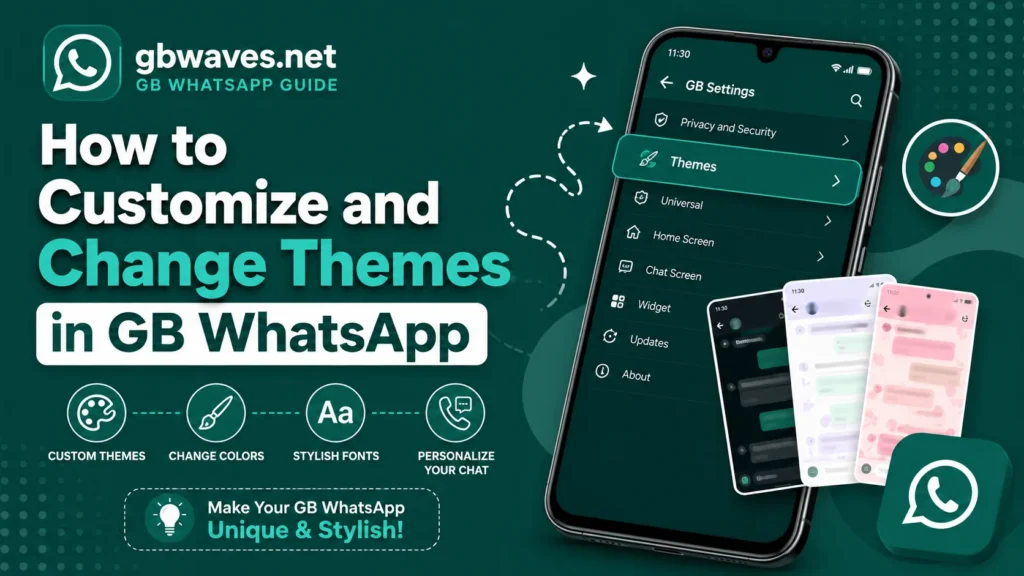
The theme store in GB WhatsApp lives inside the app, not in any external marketplace. To open it, tap the three-dot menu in the top right of the home screen, then look for GB Mods or Themes, depending on your version. On newer builds the entry is labeled Themes, and it takes you directly to a grid of previews.
Inside the theme store, you will see several tabs at the top, typically Home, Popular, Recent, and Downloads. The Home tab shows what the GB team has featured, while Popular lists what other users are installing most. Each theme preview shows a small chat mockup so you can see roughly how it will look before you commit. Tap any preview to see a larger view, then hit Download to add it to your collection.
The store refreshes its catalog regularly, so it is worth checking back every couple of weeks if you like rotating your look. Themes are typically a few hundred kilobytes, so they download fast even on slow networks. Once a theme is in your Downloads tab, you are ready to apply it.
Applying a New Theme
Applying a theme in GB WhatsApp is a one-tap action. Open the theme store, pick the design you want, and tap Apply. The app will switch to the new look almost instantly. You will see the new colors in the top bar, chat bubbles, and settings menus, and your home screen wallpaper will adjust to fit. There is no need to restart the app for the change to take effect, which is one of the things that makes GB WhatsApp feel snappy compared to other mods.
If the theme supports it, you can also enable Auto Night Theme, which switches to a darker variant of the same design at a time you choose. This is great if you want a consistent look during the day and a more comfortable view at night. To find this option, go to Themes, then tap the gear icon or the three dots at the top of the screen.
When a theme is active, you can still tweak individual elements through the Colors and Wallpaper sections. We will cover those next.
Customizing Colors and Wallpapers
Beyond full themes, GB WhatsApp lets you adjust the app piece by piece. Open the main settings, then go to GB Mods, followed by Universal or Appearance, depending on your version. From here you can change the top bar color, the chat bubble color for both sent and received messages, the background pattern, and the accent color used for icons and highlights.
The color picker is straightforward. Tap any colored swatch and choose a custom hue using the wheel, or paste a specific hex code if you have a brand color in mind. This level of control means you can match GB WhatsApp to your phone’s wallpaper, your favorite team’s colors, or your company’s brand if you use the app for work.
The wallpaper section works similarly. You can pick a stock image from GB WhatsApp’s library, use a photo from your gallery, or set a solid color. The app supports both scrolling wallpapers, which move as you scroll through chats, and static ones. If a custom theme has already set a wallpaper, you can override it here without losing the rest of the theme’s design.
Downloading and Importing Custom Themes
GB WhatsApp’s built-in store has plenty of options, but the real fun starts with custom themes. Independent designers share their work in dedicated Telegram channels, community forums, and on download portals like gbwaves.net, which regularly features the most popular community designs. These themes usually come as a small .attheme or .xml file, or as a packaged APK-style theme file you can sideload.
To import a custom theme, download the file to your phone, then open GB WhatsApp and go to Themes. Tap the Import option, often hidden under a small folder icon or a three-dot menu, and select the file from your downloads folder. The app will parse it, show a preview, and ask if you want to apply it. If the theme does not load, double-check the file extension, since GB WhatsApp only recognizes specific formats.
A word of caution: only download custom themes from sources you trust. A malicious theme file can include code that hooks into deeper parts of the app. Stick to well-known community uploads, and if a theme asks for strange permissions, skip it.
Once you import a custom theme, it joins the rest of your downloaded themes in the Themes section. From there you can reapply it anytime, edit specific color values, or share it with friends. Many users build small personal collections, switching between them depending on the season or their mood. The Import option also accepts theme packs shared as ZIP archives, which makes it easy to grab a bundle of matching designs in one go.
Reverting to the Default Theme
If you want to go back to the original GB WhatsApp look, the process is simple. Open Themes, then look for the option labeled Reset to Default, Restore Stock, or GB Original, depending on the version. Tap it, confirm, and the app will return to its default color scheme and wallpaper. None of your chats or settings are affected; only the visual layer is reset.
You can also uninstall a downloaded theme without applying it, by going to the Downloads tab, long-pressing the entry, and choosing Delete. This keeps your theme list clean and prevents old or broken designs from being accidentally applied later.
If the app starts acting strangely after you apply a theme, the safest fix is to revert to the default, then re-apply the theme one step at a time using the manual color controls. That way you can isolate which element is causing the issue.
Tips for a Smooth Theme Experience
| Tip | Why It Helps |
|---|---|
| Preview before applying | Prevents wasted time on themes that do not suit your style |
| Use Auto Night Theme | Reduces eye strain without manual switching |
| Stick to trusted sources | Avoids malicious or broken theme files |
| Reset to default if something breaks | Quickest way to fix crashes after a bad theme |
| Combine themes with color tweaks | Creates a unique look that fits your phone |
| Keep at least one stock theme as backup | Lets you test whether issues are theme-related |
FAQs About Themes in GB WhatsApp (2026)
You can find it by opening the three-dot menu on the home screen and tapping Themes or GB Mods. On newer versions, the entry is labeled simply Themes.
Yes, the vast majority of themes in the built-in store and community uploads are free. Some premium designers sell custom themes through their own channels, but you do not have to pay to get a good-looking setup.
No, themes only affect the visual layer of the app. Your messages, contacts, and media remain untouched even after applying or removing themes.
Yes. You can save any color combination you create as a custom theme through the Save Theme option in the appearance settings, then share the file with friends.
Trusted community forums, official Telegram groups, and gbwaves.net regularly feature reviewed themes. Avoid random download links shared in chat groups.
Conclusion
Themes are one of GB WhatsApp’s most-loved features, and in 2026 the system is more flexible than ever. You can browse the built-in store, apply a one-tap redesign, fine-tune individual colors, or import a community-made theme to stand out. The whole process is reversible, so there is no risk in experimenting. If a theme does not feel right, you can always reset to the default in a couple of taps.
The key to a good experience is sticking to trusted sources, previewing before you apply, and keeping your customizations organized. With a small amount of effort, you can turn GB WhatsApp into something that looks nothing like anyone else’s. For more guides on getting the most out of your mod, the tutorials on gbwaves.net are a solid place to keep learning.