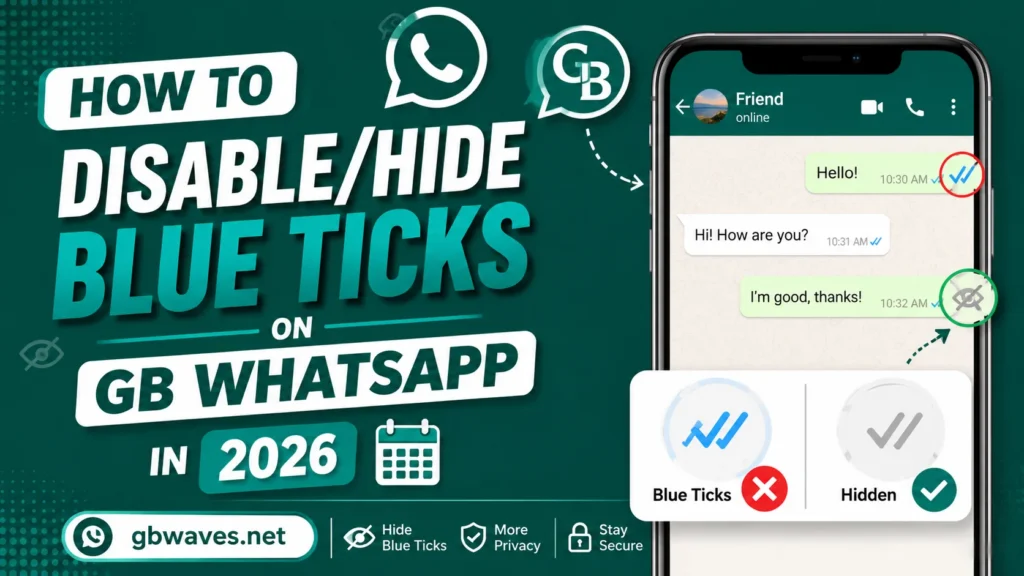
How to Disable/Hide Blue Ticks on GB WhatsApp in 2026
Blue ticks are one of the most debated features in any messaging app. Some users love the confirmation that their message has been read. Others feel pressured by them, especially in group chats or work conversations. If you fall into the second group, GB WhatsApp gives you more control over read receipts than the official app does, and the 2026 build is the most flexible yet.
This guide explains how to disable or hide blue ticks in GB WhatsApp APK, how to extend that privacy to second ticks, status views, and typing indicators, and how to use the freeze mode to read messages quietly without notifying the sender. We will also cover the trade-offs, since hiding read receipts affects both directions in some setups. By the end, you will know exactly which switches to flip and where to find them.
What Blue Ticks Actually Mean
In WhatsApp, the two grey ticks under a message turn blue when the recipient opens the chat and the message renders on their screen. A single grey tick means the message was sent from your device, two grey ticks mean it reached the recipient’s phone, and two blue ticks mean it was read. Some users also pay attention to the second tick specifically, since a message that has been delivered but not read is in a kind of limbo.
GB WhatsApp keeps the same visual language but layers in additional controls. The official WhatsApp lets you disable read receipts for everyone, which means you also stop sending them. GB WhatsApp gives you the same option, plus more granular settings that the official app does not expose. You can hide blue ticks while still seeing them, freeze ticks so they never update, or hide the ticks only in specific chats. The result is a privacy experience that fits how you actually use the app.
Disabling Blue Ticks for Everyone
The fastest way to turn off blue ticks is through the GB WhatsApp privacy menu. Open the app, tap the three-dot menu at the top of the home screen, and go to GB Privacy, or simply Privacy on newer versions. Inside, look for an option called Blue Ticks, Read Receipts, or Hide Read.
Toggle the switch off, and the app will stop sending blue ticks to other users. Your own chat list will still show blue ticks when other people read your messages, because the visual display is independent of the sending behavior. If you want to hide blue ticks both ways, look for the Freeze Blue Ticks or Hide Blue Ticks Always option in the same menu.
The change takes effect immediately. There is no need to restart the app, and your existing chats will respect the new setting from the next message onward. If you want to revert, come back to the same menu and toggle the switch back on.
Hiding the Second Tick and Other Receipt Stages
Beyond blue ticks, GB WhatsApp also lets you hide the second grey tick, which signals that a message has been delivered. To do this, go to the same privacy menu and look for an entry labeled Second Tick, Delivery Receipt, or Hide Delivery. When you enable it, your messages will only show the first tick to other users, which can be useful if you want a more discreet presence.
The privacy menu also contains toggles for blue tick on reply, blue tick in groups, and blue tick on voice messages. These are independent of the main blue tick setting, so you can mix and match. For example, you can hide blue ticks in private chats but still show them in groups, or hide them for text messages but allow them for voice notes. This level of control is one of the reasons GB WhatsApp remains popular in 2026.
If you are not sure which combination to choose, start with the most permissive setting, then tighten as needed. You can always go back and adjust.
Freeze Blue Ticks Mode
Freeze Blue Ticks is one of GB WhatsApp’s signature privacy features. When enabled, the app records the last read state of each chat and shows that to the sender, even if you have actually read new messages. In other words, you can open a chat, read everything, and the sender will still see the old tick state. Your messages will appear unread to them, but you can read freely.
To enable freeze mode, open the privacy menu and tap Freeze Blue Ticks or Freeze Last Seen. There will be a switch that, when turned on, snapshots the current state. You can also set the app to refresh the snapshot at a specific interval, which keeps the deception running smoothly over time.
A common pattern is to enable freeze mode at the start of the day, then disable it briefly when you want to let people know you have seen their messages. This is a personal choice, and the app gives you the tools either way.
Hiding Status Views and Typing Indicators
Status views are another area where GB WhatsApp shines. The official app shows everyone who has viewed your status updates. GB WhatsApp lets you view other people’s statuses without leaving a trace. In the privacy menu, find Status Privacy or Hide Status View, and toggle it on. You can then browse updates freely, and the original posters will not see your name in the viewer list.
The same menu has options for hiding the typing indicator and online status. The typing indicator is the “typing…” text that appears when someone is composing a message. With the right toggle, you can type without the other person seeing that you are typing, which is handy if you want a moment to think before sending.
Online status hiding works similarly. The app can show you as offline even when you are active, so people do not see you as currently available. This is also useful if you want to use GB WhatsApp without feeling pressured to reply immediately.
Anti-Revoke: Reading Deleted Messages
One more feature worth knowing is anti-revoke, which sits in the same privacy section. When someone deletes a message they sent to you, the official WhatsApp removes it from your chat. GB WhatsApp’s anti-revoke setting keeps the message visible on your side, even after it has been deleted on the sender’s side.
To enable it, look for Anti-Revoke, Revoke Prevention, or Delete for Everyone Blocker in the privacy menu. Toggle it on, and the next time someone deletes a message, you will still see the original text in your chat. The sender will think the deletion worked, but you will have the full context.
This feature is popular in group chats, where people sometimes delete messages right after sending them. With anti-revoke, you can keep the conversation flowing without losing important information.
Privacy Settings at a Glance
| Setting | What It Does | Best For |
|---|---|---|
| Hide Blue Ticks | Stops sending read receipts | Quiet reading without pressure |
| Hide Second Tick | Hides message delivery confirmation | Discreet messaging |
| Freeze Blue Ticks | Locks read state at last snapshot | Long-term privacy |
| Hide Status View | Watch statuses anonymously | Browsing without a trace |
| Hide Typing Indicator | Type without showing “typing…” | Thoughtful replies |
| Anti-Revoke | Keeps deleted messages visible | Group chats, busy threads |
FAQs About Hiding Blue Ticks on GB WhatsApp (2026)
No, the basic setting is one-directional. You stop sending blue ticks but still see them when other people read your messages. To hide them both ways, use the Freeze Blue Ticks option.
Yes, GB WhatsApp supports per-chat privacy overrides. Long-press a chat, open the contact info, and look for the privacy options specific to that conversation.
It can, depending on how the setting is configured. You can choose to hide the second tick in private chats only, or in all chats including groups. The choice is in the privacy menu.
Yes, it is a built-in feature of GB WhatsApp and does not require extra permissions. Just remember that some senders may notice their messages never get marked as read, which can lead to follow-ups.
Yes, anti-revoke covers both text and media deletions. Photos, videos, and voice notes that someone deletes will remain visible in your chat once anti-revoke is on.
Conclusion
GB WhatsApp’s privacy features are what set it apart from the official app, and the 2026 build refines them further. Hiding blue ticks, freezing the read state, blocking status views, and stopping deleted messages from disappearing are all simple toggles in the privacy menu. None of them take more than a few seconds to enable, and they can be reversed just as easily.
The key is to find the right balance. Hide too much and people may think you are ignoring them. Hide too little and you lose the relaxed feel that drew you to GB WhatsApp in the first place. Experiment with the settings, settle into a configuration that suits your style, and revisit them whenever your needs change. For more tips on getting the most out of your mod, the guides on gbwaves.net are a good place to keep exploring.