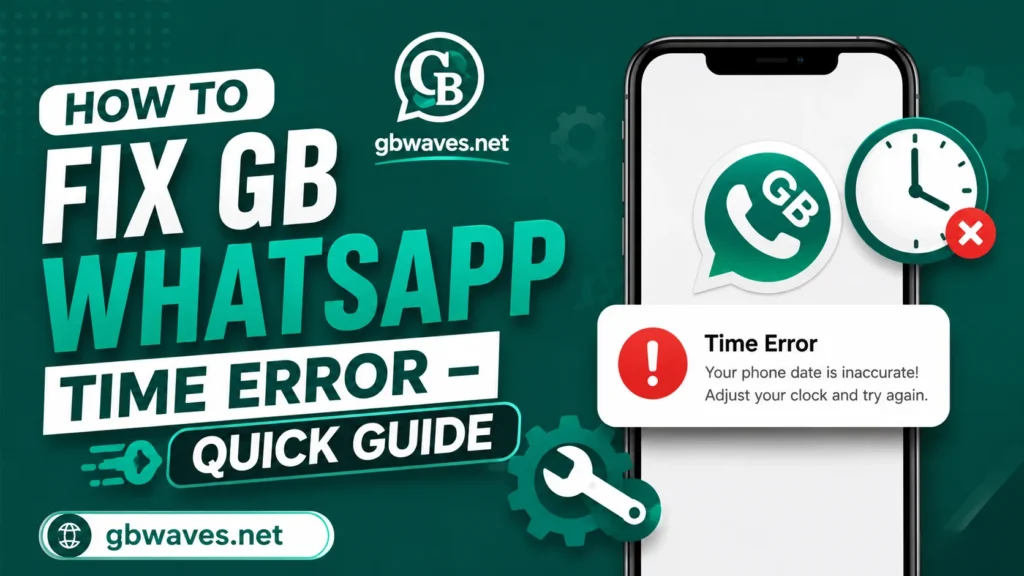
How to Fix GB WhatsApp Time Error – Quick Guide
The GB WhatsApp time error is one of the most common issues users run into, and it shows up at the worst possible moment. You open the app to send an important message, and instead of loading your chats, you see a message that says something like “Your phone date and time are out of sync” or “Message failed to send due to time difference.” The error blocks you from sending or receiving messages until it is fixed, which can be stressful if you rely on GB WhatsApp for daily communication.
The good news is that the time error is almost always caused by a small misconfiguration on your device, not by WhatsApp GB itself. In 2026, the fix is usually a matter of seconds once you know where to look. This guide explains what the time error is, why it happens, and the exact steps to clear it for good. We will also cover what to do if the basic fixes do not work, so you are not stuck refreshing the app endlessly.
What the Time Error Actually Means
At its core, the time error is a security feature borrowed from the official WhatsApp. The app compares the time on your phone against WhatsApp’s servers. If the difference is too large, the app refuses to connect, because a misaligned clock can be a sign of tampering, a rooted device with manipulated timestamps, or simply a wrong timezone setting.
In GB WhatsApp, the error message often appears as a yellow or red banner at the top of the screen. It usually reads something like “Your phone’s time is inaccurate, please correct it.” The app may also refuse to send messages, even though your internet connection is fine. The chat list may load partially, or it may not load at all until the issue is resolved.
The reason this error is so common in 2026 is that many users travel, switch networks, or use custom ROMs that override the system clock. Even a five-minute difference can be enough to trigger the warning.
Why the Time Error Happens
There are a few typical causes, and they tend to overlap. The first is the most obvious: your phone’s date or time is set manually and is no longer accurate. If you have changed the battery, restored a backup, or simply forgotten to enable automatic time, the clock can drift over time.
The second cause is a network issue. If your phone cannot reach a time server, the automatic clock may fall back to an old value. Some VPNs and corporate Wi-Fi networks block the ports WhatsApp uses to sync time, which can leave the device relying on a cached timestamp.
The third cause is a corrupted cache in GB WhatsApp. Even if your system clock is correct, leftover data from a previous install can confuse the app into thinking the time is wrong. Clearing the cache usually fixes this within a minute.
A fourth, less common cause is a version mismatch. If you are running an older GB WhatsApp build on a phone that has just updated its time server, the app may not yet support the new sync protocol. Upgrading to the latest version usually clears this up.
Fix Step 1: Sync Your Phone’s Date and Time
The first thing to try is the simplest. Open your phone’s Settings, find the Date and Time section, and make sure Automatic Date and Time is enabled. This option tells your phone to pull the current time from your carrier or network. Once it is on, wait a few seconds for the time to refresh, then open GB WhatsApp again.
If automatic time is already enabled but the time is still off, toggle it off, manually set the correct date and time, then toggle it back on. This forces a fresh sync. On most Android phones, you will see the time update within a few seconds of re-enabling the option.
Users on custom ROMs sometimes need to clear the time cache stored by the system. To do this, reboot your phone after toggling the automatic setting, and check the time on the lock screen before opening GB WhatsApp.
Fix Step 2: Clear GB WhatsApp’s Cache
If the time is correct but the error persists, the next step is clearing the app cache. Go to Settings, then Apps, find GB WhatsApp in the list, and tap Storage. You will see two options: Clear Data and Clear Cache. Choose Clear Cache first, since it is the less aggressive option and will not delete your chats.
Clearing the cache removes temporary files that the app uses to speed up loading. Among those files can be a stored timestamp that conflicts with the current time. Once the cache is cleared, restart the app and the error should be gone. If not, you can also try Clear Data, but be aware that this will sign you out and require a fresh restore from your backup.
Many users skip the cache step because they worry about losing data. Rest assured, the cache is throwaway data and is rebuilt the next time the app launches.
Fix Step 3: Check Your Network and VPN
The third fix targets network issues. If you are using a VPN, disconnect it temporarily and try opening GB WhatsApp. Some VPN servers route traffic through regions where the time sync is blocked, which can cause the error to appear even with a correct system clock.
If you are on corporate Wi-Fi or a restricted network, switch to mobile data or a home Wi-Fi network. Once the connection changes, the time sync should kick in. You can verify the sync by opening a browser and visiting a site that displays the current time, then comparing it to your phone’s clock.
If the network is the problem, you do not need to change your GB WhatsApp installation. Just make sure your phone is on a network that allows time synchronization, and the app will work normally.
Fix Step 4: Reinstall GB WhatsApp as a Last Resort
If none of the above fixes the error, the final step is a clean reinstall. First, take a local backup from inside GB WhatsApp, then uninstall the app. Download the latest stable version from a trusted source like gbwaves.net, and install it. Open the new build, verify your number, and restore from the backup you just took.
A clean reinstall removes any leftover data from older versions that may have been holding a stale timestamp. It also ensures you are running the latest code, which often includes improvements to time handling and server communication.
After reinstalling, leave automatic date and time enabled and avoid manipulating the system clock manually. With those two habits, the time error is unlikely to come back.
Quick Fixes at a Glance
| Fix | When to Try It | Difficulty |
|---|---|---|
| Enable automatic date and time | Always try this first | Very easy |
| Manually set the correct time | When automatic sync fails | Easy |
| Clear GB WhatsApp cache | When time is correct but error persists | Easy |
| Switch off VPN or change network | When on restricted Wi-Fi | Easy |
| Reinstall the latest GB WhatsApp | When nothing else works | Medium |
FAQs About the GB WhatsApp Time Error (2026)
It means your phone’s clock is out of sync with WhatsApp’s servers. The app blocks sending and receiving messages until the time is corrected.
Yes, clearing data signs you out and removes local chat history. Always take a backup first, or rely on a Google Drive backup to restore after clearing data.
Common causes include a corrupted cache, a VPN that blocks time sync, or an old GB WhatsApp build. Updating to the latest version from gbwaves.net and clearing the cache usually prevents it from returning.
No, the time error is unrelated to bans. It is purely a clock synchronization issue and does not affect your account status.
Yes, some root tools manipulate the system clock, which can trigger the error. Disable any clock-editing tools and rely on automatic time sync to avoid the issue.
Conclusion
The GB WhatsApp time error looks scary but is one of the easiest issues to fix. In most cases, syncing your phone’s automatic date and time clears the error in seconds. If that does not work, clearing the app cache, checking your network, or reinstalling the latest build will handle the stubborn cases.
The key is to take a backup before making big changes, and to keep your GB WhatsApp version up to date. A current build from a reliable source like gbwaves.net handles time sync much better than outdated ones. With these habits, the time error becomes a rare visitor rather than a recurring headache.