How to Create Channel on WhatsApp – Complete User Guide
WhatsApp Channels launched as a way for people, brands, and creators to broadcast updates to a large audience without the noise of a group chat. Unlike a group, where everyone can message each other, a channel is one-way. The admin posts, the followers read, and the comments stay disabled by default. In 2026, channels have become a major feature of both the official WhatsApp and GB WhatsApp, and creating one takes only a couple of minutes.
This guide explains what a channel is, who should use one, and how to set it up step by step inside GB WhatsApp 2026. You will learn how to choose a name, write a description, customize the icon, post your first update, manage followers, and grow the channel over time. Whether you are running a small business, sharing hobby content, or simply keeping friends updated on a project, the process is straightforward.
What a WhatsApp Channel Is
A channel is a public or private broadcast list that lives inside WhatsApp. The admin posts text, photos, videos, polls, and voice notes, and followers receive them in a separate tab called Updates. The tab keeps channels distinct from personal chats, so they do not clutter your main conversation list.
Channels can be public, which means anyone can find them through search, or private, which means they only work through an invite link. Public channels show up in a directory that WhatsApp curates by region, interest, and trending topics. Private channels are useful for internal communications, like a small business sharing announcements with staff, or a creator sharing exclusive content with paid supporters.
The biggest advantage of channels over regular broadcast lists is reach. Broadcast lists cap at 256 contacts and require the recipients to have your number saved. Channels have no such limit and do not require saving the admin’s number, which makes them ideal for audiences that you do not know personally.
Who Should Create a Channel
Channels work well for a variety of use cases. Small business owners can use them to share product launches, sale announcements, and order updates. Creators, including writers, photographers, and educators, can use them to share new work without the friction of a newsletter service. Community organizers can broadcast event details to members, and hobbyists can post regular updates to fellow enthusiasts.
If you are wondering whether a channel is the right tool, ask yourself a few questions. Do you want to send the same message to many people? Do you not need a back-and-forth conversation? Do you want followers to be able to discover you? If the answer to all three is yes, a channel is a good fit. If you need a real conversation, a group is still the better choice.
Creating a Channel Step by Step
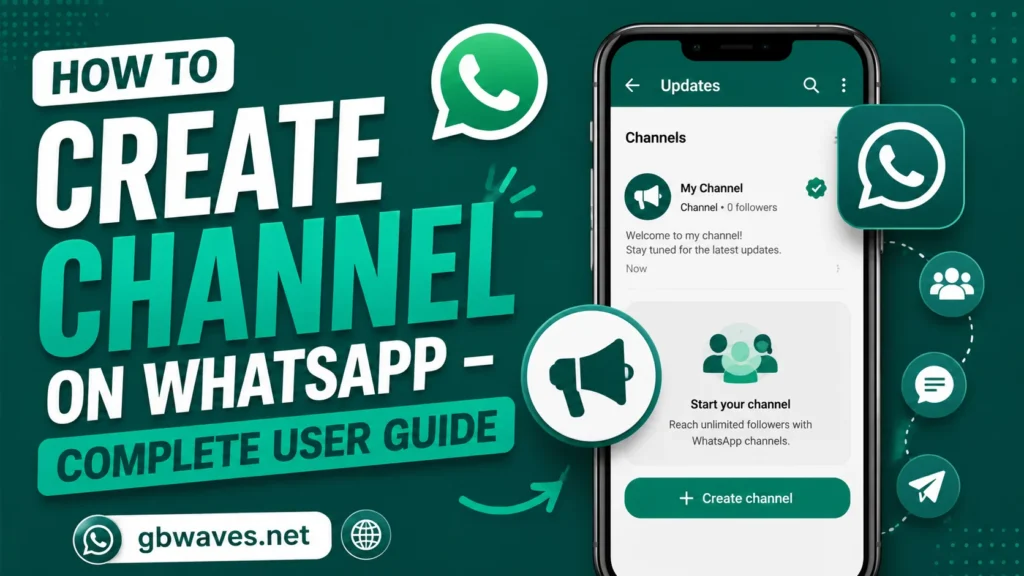
The process of creating a channel in GB WhatsApp is similar to the official app. Start by opening the Updates tab at the bottom of the screen. If you have never created a channel before, you will see a small plus icon or a Create Channel button. Tap it, and the setup wizard will open.
The first step asks for a channel name. This is the title that appears in search results and at the top of your channel page, so choose something descriptive. If you are running a bakery, something like “Sweet Layers Bakery” is clear and memorable. Avoid overly long names, since they get truncated in lists.
The second step asks for a description. You have a few lines of text to explain what the channel is about. Be specific. A line like “Daily specials, behind-the-scenes kitchen stories, and event invites from Sweet Layers” tells potential followers exactly what to expect.
The third step is the icon. You can either pick an emoji as the channel’s avatar or upload a photo from your gallery. For a brand, the logo is the obvious choice. For a personal channel, an emoji that captures the topic works fine.
Once you have filled in the details, tap Create, and your channel is live. You will be taken to the channel’s home screen, where you can post your first update.
Posting Your First Update
After creating the channel, the home screen will prompt you to post. Tap the message icon, and you will see a familiar composer, similar to the one you use in chats. You can write text, attach photos, record a voice note, share a video, or create a poll.
For the first post, keep it short and welcoming. Introduce the channel, mention how often you plan to post, and invite people to follow. If your channel is public, this is also a good moment to share the invite link in your other social profiles so your existing audience can find you.
When you publish the update, it will appear in the Updates tab of every follower. They will receive a notification, depending on their settings, and can react with an emoji if reactions are enabled. You can see reaction counts on each post, which is a quick way to gauge what resonates.
Managing Followers and Permissions
Channels have a simple permission structure. The admin can post, edit, and delete messages, and can add or remove other admins if they need help running the channel. Followers can read and react, but cannot post unless the admin enables comments on a specific message.
To manage followers, open your channel and tap the channel name at the top. You will see a list of followers (only the count is shown for large channels), and an option to add admins. Adding an admin is a good idea if you run a brand channel and want to delegate posting duties to a colleague or social media manager.
If you ever want to step back, you can transfer ownership to another admin or delete the channel entirely. Deleting a channel removes all posts and the follower list, so do not do it lightly. For a temporary pause, simply stop posting; the channel will remain visible but quiet.
Customizing the Channel Look
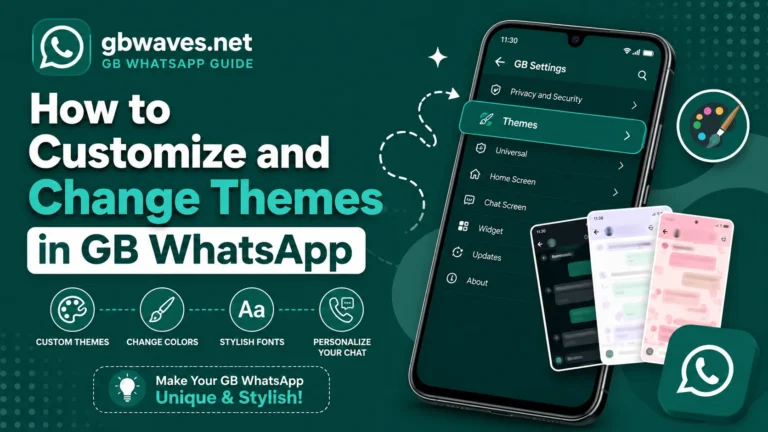
GB WhatsApp gives you a few extra customization options beyond the official app. In the channel settings, you can choose whether followers see a count of how many people have viewed a post, whether reactions are public or hidden, and whether the channel is searchable in the public directory.
You can also pin a message at the top of the channel. Pinned messages are useful for evergreen content like a welcome post, a link to your website, or a list of rules for the community. To pin a message, long-press it and select Pin. The post will then stay at the top for as long as you want, until you unpin it.
The channel’s icon can be updated at any time. If you rebrand, change your logo, or just want a fresh look, open the channel settings, tap the icon, and upload a new image. The change is instant.
Growing Your Channel in 2026
| Growth Tactic | Why It Works | Effort Level |
|---|---|---|
| Cross-promote on social media | Reaches people who already follow you | Low |
| Share invite link in your WhatsApp status | Taps into your existing network | Low |
| Post consistently | Builds trust and habit | Medium |
| Use polls and reactions | Encourages engagement | Low |
| Partner with other channels | Cross-audience exposure | Medium |
| Run a small ad campaign | Targets new audiences | High |
FAQs About Creating a WhatsApp Channel (2026)
Yes, channels are free in both the official WhatsApp and GB WhatsApp. There are no setup fees or ongoing costs for the basic feature.
Channels can scale to millions of followers, which is one of the main reasons creators prefer them over broadcast lists.
No, the follower list is private. The admin can see aggregate counts, but individual followers are not visible to each other.
Yes, channels are tied to your phone number, so logging into the same number in GB WhatsApp will bring your existing channel with you. Just make sure to back up before switching apps.
Both work, and the channel feature is the same on the server side. GB WhatsApp adds a few extra customization options, so if you already use it, you can create the channel there without losing anything. Tutorials and walkthroughs are available on gbwaves.net if you want more detailed steps.
Conclusion
WhatsApp Channels are one of the cleanest ways to broadcast updates to a wide audience in 2026. Creating one is a matter of minutes, and the management tools are simple enough that you do not need a background in marketing to use them well. Choose a clear name, write a useful description, post regularly, and engage with reactions, and your channel will start to grow on its own.
The most important habit is consistency. Channels that post every day or every week tend to retain followers far better than those that post sporadically. Pick a schedule you can maintain, and stick to it. For more guides on using GB WhatsApp’s advanced features, the resources on gbwaves.net are a helpful next stop.